Position & surface
Place, resize, align and group freely. Adjust backgrounds, opacity, corners, shadows and padding.
DASHBOARD / XENEON EDGE
Your display. Your dashboard. On your Mac.
A dedicated place for time, music and your actions. Make your XENEON EDGE work the way you want.
macOS 14+ · XENEON EDGE
01 / EXPLORE

02 / DESIGN
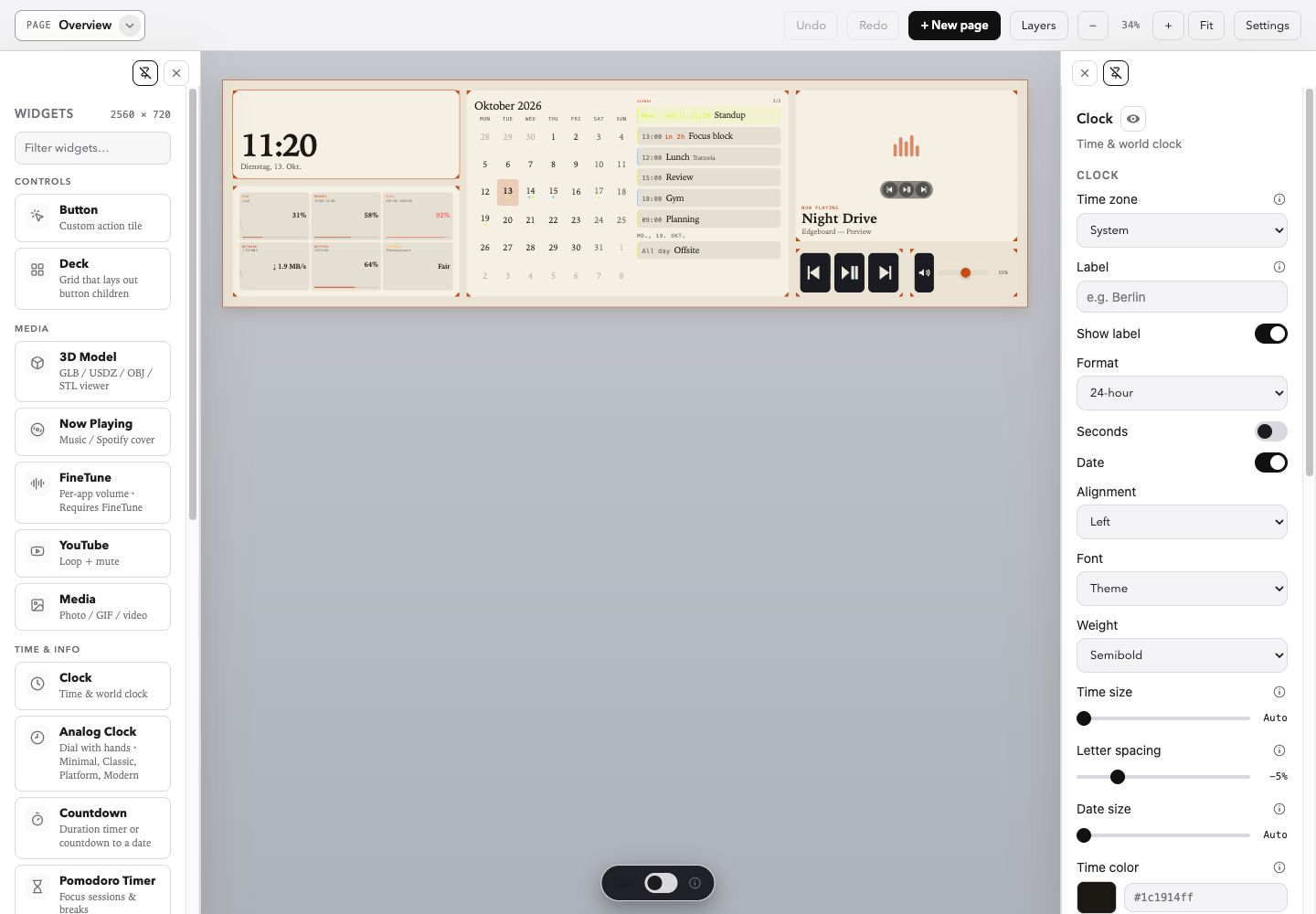
Place widgets freely, design your own buttons and switch between your pages. The designer shows what will appear on your display.
YOUR LAYOUT
Every widget has its own position, size and appearance. Shared styling options and additional settings for each widget turn the templates into your dashboard.
Place, resize, align and group freely. Adjust backgrounds, opacity, corners, shadows and padding.
For clocks and timers, choose font, weight, size and spacing. Each widget adds its own views, sources and controls.
Design multiple text, icon and image layers, define effects and states, and apply named styles to other buttons.
Use multiple pages, custom themes and theme schedules. Page backgrounds can use a colour, an image or a video.
THE WIDGET CATALOG
Widgets are grouped by task. Open a category for details and previews.
Two example styles with fictional data and local demo content, not fixed presets. Integrations shown here use no personal accounts.
Local time and world clock. Adjust typography, size and presentation to your layout.

Four dial designs; customise numerals, ticks and hands.

A duration timer with start/pause or a countdown to a date and time.

Focus sessions and breaks with your own timings; adjustable typography and arrangement.

Month view and events from your Mac. Events require Calendar access for the Agent.

Current conditions and a two-day forecast with WeatherKit or Open-Meteo; requires online weather data.

Build a face with text, icons and images. Trigger apps, shortcuts, scripts, URLs, pages, macros or integration actions.

Arrange buttons in a grid: columns, rows, gaps, padding and fixed or flexible button sizes.

Apple Music or Spotify artwork, track information and playback controls; choose an automatic or fixed source. Automation may require permission. With EdgeD Cast, you can also control YouTube playback in Safari or Google Chrome.

Video by URL, looping and mute. Optional Cast target for Safari and Google Chrome and audio continuation across pages.

Display local media with adjustable fit, zoom and focal point.

Rotate and zoom local models such as GLB, USDZ, OBJ or STL. Format and resource support depend on the model.

Per-app volume, mute and output routing. The separate FineTune app must be installed and running.

Keep an eye on CPU, memory, disk, battery and thermal status.

Mac and supported accessories as rings, a list or a strip; configure selection and presentation per widget.

Configurable controls for volume, media, microphone mute, sleep or locking.

Embed an existing dashboard. Control entities with Button actions or an HA Controls deck; requires your own connection.

Embed custom HTML or web content. External sites must allow embedding.

Layer a decorative texture over the layout and adjust its opacity.

Use colour washes, frost or film grain as a design layer.

Clip media with a mask and fit it into your design.

Grouping is an additional layout tool: move widgets together while retaining their individual settings.
CONNECTED TO YOUR MAC
Enable EdgeD Cast in Safari (18.4 or later) or Google Chrome and allow it to access YouTube. Use the Cast button in the player to send the video to a dashboard widget or overlay. Playback continues there from the same point.
Want to keep watching in your browser? Use the Now Playing widget to pause or resume a video in a regular YouTube tab. Turn on YouTube control under Integrations in EdgeD’s settings. If you use Chrome, connect it to the widget there too.
EdgeD Cast privacy policyConnect Philips Hue directly through a local Bridge or use Home Assistant. Control lights and scenes with custom buttons after setting up the respective connection.
An optional microphone driver provides “EdgeD Microphone”. Choose a physical microphone and start forwarding muted. Receiving apps must select this virtual microphone.
The microphone driver is never installed automatically. The Agent must run for forwarding. The driver does not record audio.
EdgeD MICROPHONE · OPTIONAL
The optional microphone driver lets you mute your microphone from the dashboard. This is especially useful if your microphone or audio interface has no dedicated mute button: your input level stays as you set it. Select “EdgeD Microphone” as the input in your calling app.
EdgeD processes your microphone signal exclusively on your Mac and does not record it. The calling app you choose may transmit it to other participants during a call.
You only install and activate this feature if you want to use it.
Microphone forwarding, muting and unmuting have been tried successfully with all three apps.
Tested on a Mac with a Focusrite Scarlett 2i2 (4th generation), with the microphone connected to Input 1. Behaviour may vary with your hardware and app version.
FOR YOUR DISPLAY
Use test charts to judge brightness, contrast, white point and gamma. Colour temperature and individual channels provide further adjustment. This is software adjustment, not instrument-based hardware calibration or an ICC profile.
The Agent applies image adjustments through the gamma curve. Quitting restores the original curve; settings are not written into monitor hardware.
Built-in touch supports taps, double taps, dragging, scrolling, page swipes and optional right click. Adjust gesture timing and behaviour. Input Monitoring and Accessibility for the Agent are required; touch starts disabled.
03 / SETUP
Open the DMG, drag EdgeD to Applications and launch it.
The welcome assistant guides you through setup. Touch requires Input Monitoring and Accessibility permission for the agent.
Start with a layout, adjust your widgets and create your first page.
Touch starts disabled. Touch requires Input Monitoring and Accessibility permission for EdgeD Agent. Calendar, location and player features may require additional permissions when you use them.
LOOKING AHEAD
We’re exploring these ideas for future versions of EdgeD.
Keep layouts, themes and media in a chosen folder; existing sync services can transport it. Initially one writing Mac, no built-in cloud client and no complete backup.
Exchange themes, button styles or later entire pages. Scope and safe handling of private data and active actions are still being defined.
An intentional backup and a clear restore path for the configuration. Exact scope is still open; sync alone is not a complete backup.
A dashboard for a rotated display. Layout, touch mapping and presentation need to work together; support has not been committed.
Free for private use.
Explore the setups again